Web Projects Control Panel
- Open the Web Projects Control Panel:
- Viewing a Project's Files
- Project and File Type Selectors
- Quick Publish
- Web Project Control Panel Icons
- Recently Selected Projects
- New Component or File
- Create A New Grid Component
- Add File
- Edit File
- Delete File
- New Project
- Publish
- Live Test/Working Preview
- Security
- Project Properties
- Open Project Folder in Windows Explorer
- Open Windows CMD Window
- Cordova
- PWA
- AlphaCloud
- More...
- Git
- Backup/Restore
- Ask a question
- Right-click to open the Context Menu
- Finding a File (Builds prior to 8963)
- Finding a File via Search Across All Projects (Context Menu)
- Web Projects Control Panel - Filter
- Show the Web Projects Control Panel Automatically for a Workspace
Description
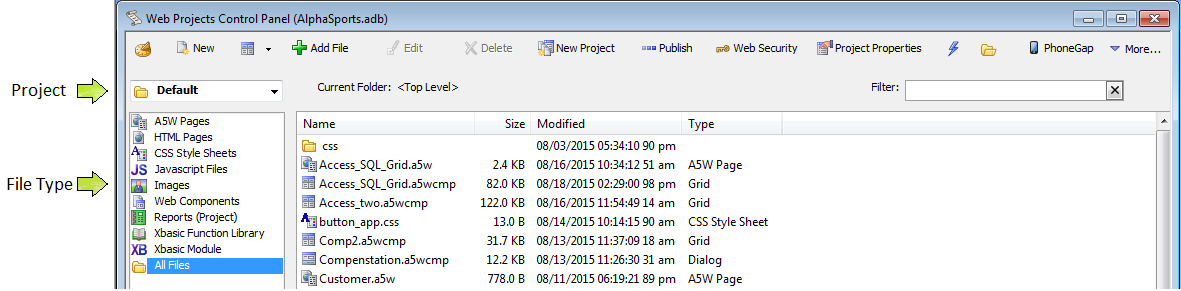
A web project contains and organizes the files that you will publish. Alpha Anywhere places these files in a directory structure under the Alpha Anywhere program folder. You may have as many projects as you need, each with a distinctive name. The Web Projects Control Panel provides a view of these projects. It also organizes all of the files used in your web projects. Here you can:
Create or delete named web projects
Shape and manage pages
Design grid web components that connect with your database's tables, views, and queries.
Develop UX web components that act like forms, accept information from, and return information to users
Fashion grid linker and tabbed grid linker components, which integrate multiple grids components into a single control
Construct navigation components that integrate your application with menus
Devise login components that control who can enter your application
Make Reports and Xbasic Modules.
Generate and edit cascading style sheets
Manage all page components (including ancillary files, such as images and style sheets)
Forge application variables that will be available to all pages within a project
Preview any grid, dialog, or page component in your Internet browser
Build folder aliases that make your projects able to run in different folders on different computers
Form one or more profiles that define how and where to publish your finished pages
Publish your finished pages to local (LAN) servers using Windows networking services or remote servers using FTP
Open the Web Projects Control Panel:
To open the Web Projects Control Panel, click Web Projects on the main toolbar.

Viewing a Project's Files
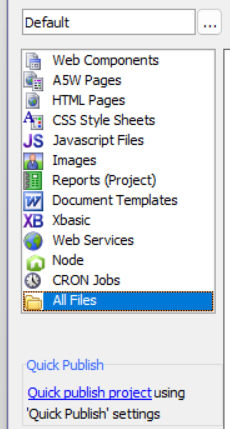
To view the files used in a project, select the project name from the drop-down list box at top left. To see all files in the project "All Files". To filter the list of files shown, select any of the following:
"Web Components"
"A5WPages"
"HTML Pages"
"Javascript Files"
"CSS Style Sheets"
"Images"
"Reports (Project)"
"Xbasic"
"Web Services"
"Node"
"CRON Jobs" (added in v4.6.6.2)
"All Files"
Project and File Type Selectors
Quick Publish
In the preceding image, you can see that below the file types is the Quick Publish option.
Quick Publish Project using 'Quick Publish' settings.
These settings must be initially set in the Publish Web Project dialog, and you will be directed to that if needed. In the Publish Web Project dialog, choose the settings you would like to use for Quick Publishing, then check the 'Save these settings as your Quick Publish settings' checkbox (near the bottom of the dialog). When you click the Publish button to publish your project, these settings will be available as your Quick Publish settings for future use.
Note: Earlier versions of Alpha Anywhere may show this option as "Quick Publish - Upload this project using Quick Publish settings."
Web Project Control Panel Icons
Recently Selected Projects
Shows the recently selected web projects. (This has been relocated to the main File menu functionality).

New Component or File
Opens the New File Dialog. You can create A5W, HTML, CSS, Javascript, Xbasic functions and Modules, and Web Component Files here.

Create A New Grid Component
Open the Grid Builder after first opening the Select Grid Component Template dialog.

Add File
Opens a Windows dialog that lets you add a file from your computer. (This has been relocated to the main File menu functionality).

Edit File
Opens a file to be edited in the Builder or Editor that corresponds to the file's type.

Delete File
Deletes a file.

New Project
Opens the Select Project Template and creates a new project.

Publish
Lets you publish your applications to the Web, so that your users can use it.

Live Test/Working Preview
Live Test - Test your Web Project on a server. Select Development Server, IIS or Alpha Cloud.
Older versions: Working Preview - Allows you to run a file without having to turn on the server. The Working Preview is useful for debugging in this regard.

Security
Web Security - Lets you set the security for your project, for all of its components, pages, users, and more.

Project Properties
Allows you to set properties for your web project. When you publish a project these properties are publish with it.

Open Project Folder in Windows Explorer
Opens Windows Explorer so you can easily open your Alpha Anywhere from Windows. You can also access Windows Explorer by click Edit > Open Project in Explorer.

Open Windows CMD Window
Open Windows CMD Window.

Cordova
Allows you to build applications that run on mobile phones.

PWA
Create a Progressive Web App.

AlphaCloud
Open AlphaCloud settings.

More...
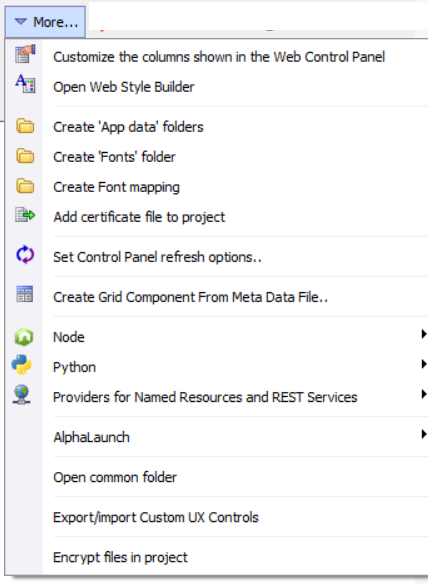
Open additional options. See [Web Projects Control Panel - Context Menu/More Option]

Git
Show Git menu. Options include: Make a Repository, Clone an Existing Git Repository, No (Exit)

Backup/Restore
Backup/Restore Web Project.
Ask a question
You can ask a question about how to do something in Alpha Anywhere by sending your question to guides@alphasoftware.com. Please try to give as much information as possible about what you are trying to do. If possible, send a test case showing how you have tried to solve the problem. Set the Subject of your email to Question and include the following text in the body of your email.

Right-click to open the Context Menu
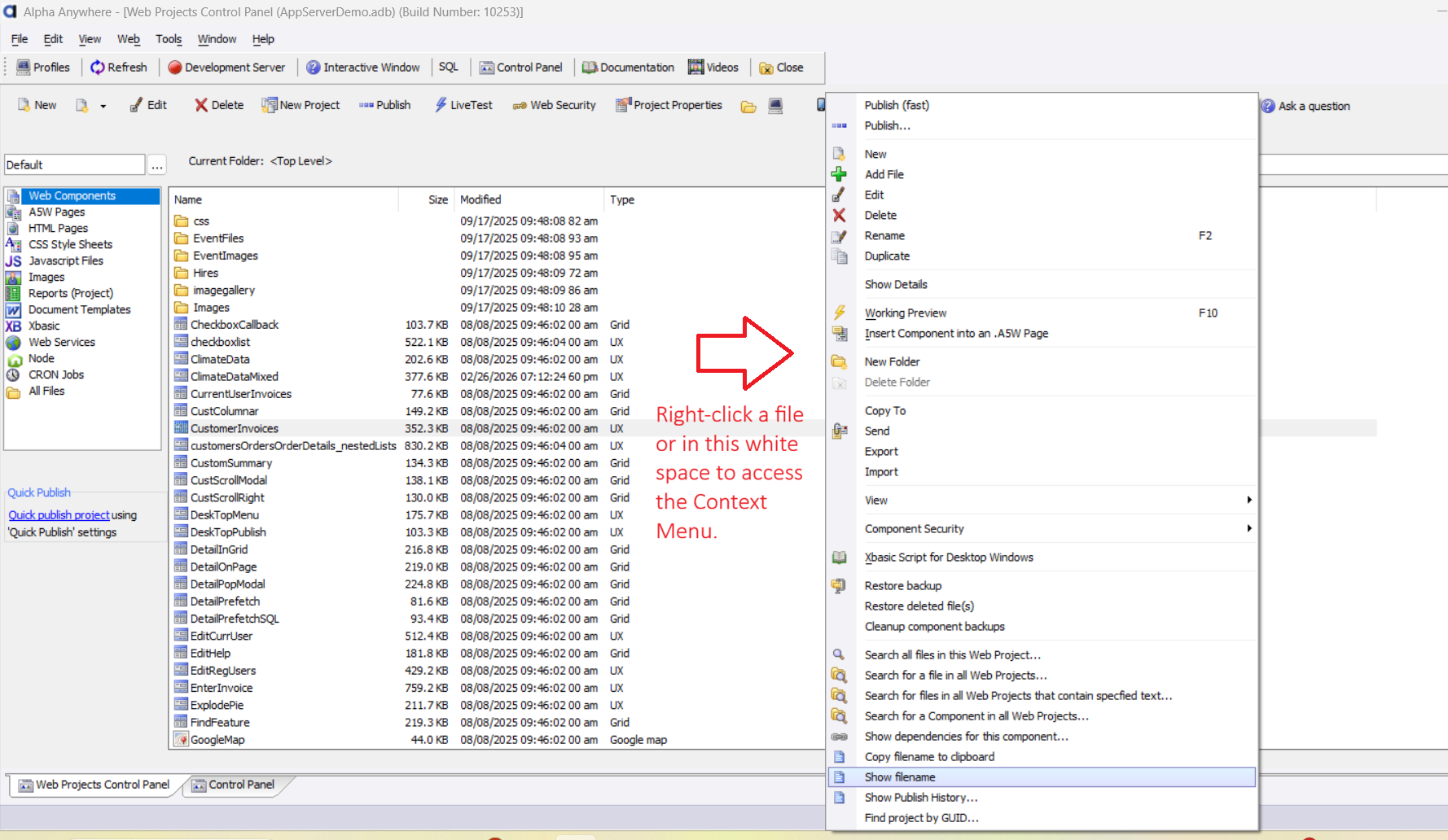
If you right-click a file or in the white space to the right of the files in the Web Projects Control Panel, a shortcut menu, (aka the "Context menu") opens with additional commands. See [Web Projects Control Panel - Context Menu/More Option].
Finding a File (Builds prior to 8963)
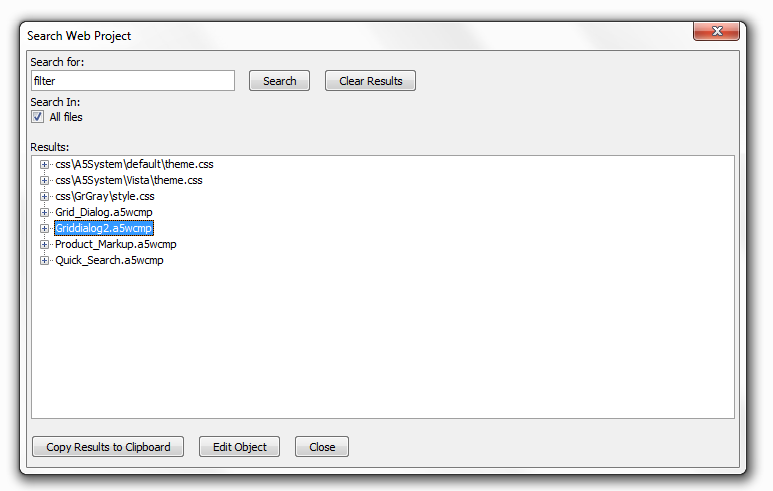
To find a file select Edit > Search in all Web Project files... to display the Search Web Project dialog. Enter text to search for and click Search. To edit an object, select it in the list and click Edit Object.
Finding a File via Search Across All Projects (Context Menu)
You can search for a specific text string within files across all web projects in your current workspace directly from the file list.
Right-click on any white space in the file list area and select Search for files in all Web Projects that contain specified text.... This opens the Find File dialog, where you can define search terms and apply file/project filters.
Web Projects Control Panel - Filter
The Web Projects Control Panel has a filter prompt. This is useful when you have a large number of files in a web project and you want to find a file quickly. The list of files displayed will automatically change to match whatever you type. The Filter: is in the top right corner on the Web Projects Control Panel toolbar.
Show the Web Projects Control Panel Automatically for a Workspace
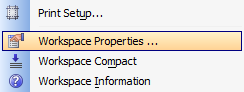
The File|Workspace Properties menu has a setting that allows you to automatically open either the Web Projects Control Panel or the desktop control panel when your Workspace opens. This way you can go directly to the set of tools you use most frequently in Alpha Anywhere.
Open the File drop-down on the Alpha Anywhere toolbar and click on Workspace Properties.
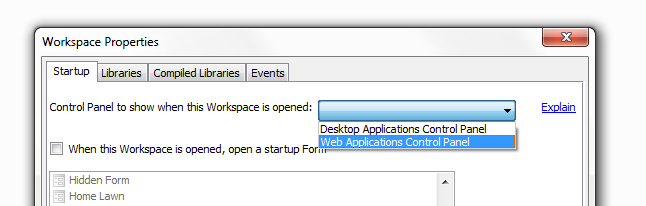
The Workspace Properties Dialog will open. On the Startup tab select Web Applications Control Panel in the 'Control Panel to show when this Workspace is opened:' drop-down.
The Web Projects Control Panel should now open when you open your workspace.
Web publishing applications only.
See Also
- Progressive Web Applications (PWA)
- CRON Jobs
- Application Global Variables - Web Project Properties
- Help Topics for Controls - Project Help Table
- PDF Printing via Microsoft XPS Printer Driver Web Project Properties
- Project Style
- Restore Component from Backup
- Revised New Web Component Dialog
- Video Finder
- Web Application Repository
- Project Properties
- Work Queue
- JQuery Support, Action Javascript Improvements,
- a5w_SaveToWebAppRepository Function,
- a5w_GetFromWebAppRepository Function,
- a5w_enumerateWebAppRepository Function,
- a5w_DeleteFromWebAppRepository Function,
- email_send_noprofile Function,
- a5_getWebProjectProperties Function,
- a5w_SaveToWorkQueue Function